Add a sale badge with Quick badge
Add a discount badge to your product images in minutes with Quick badge. Pick the text, color, shape, size, and position, preview it on a real product, and ship it to your social channels. Google and Microsoft keep the clean original.
What Quick badge does
Quick badge is the simple way to put one discount badge on your product images. No layers, no canvas, just a few controls and a live preview on a real product from your feed.
It is built for the most common case: a "% OFF" sticker that appears only on products that are actually on sale. If you later need frames, logos, custom text, or multiple overlays, you can move up to the full template editor in the Creative studio.
The badge text supports a {discount} token that becomes each product's computed percent off. So one badge renders "25% OFF" on a product at 25 percent off and "40% OFF" on a product at 40 percent off.
Add a badge step by step
Open the feed's image tab and turn the badge on. The preview renders server-side on a real (preferably discounted) product so you see exactly what the channel will receive.
- 1Tick "Show a discount badge on product images."
- 2Set the badge text. Use {discount}% OFF for an automatic percentage, or a fixed word like SALE.
- 3Choose the badge color and text color.
- 4Pick a shape: Circle, Sticker, Seal, or Banner.
- 5Adjust badge size, text size, and the horizontal and vertical position with the sliders.
- 6Check the live preview, then click Save.
When the badge appears
The badge only shows on products with a real discount, meaning a sale price below the regular price. Full-price products keep their original image, so you never badge something that is not actually on sale.
Badged images are served to channels that accept overlays (Meta, TikTok, Snapchat, Pinterest). Google Shopping and Microsoft always receive the clean original image, so a promo overlay never triggers a disapproval there. This protects you from a common cause of product disapprovals.
Quick badge and the Creative studio
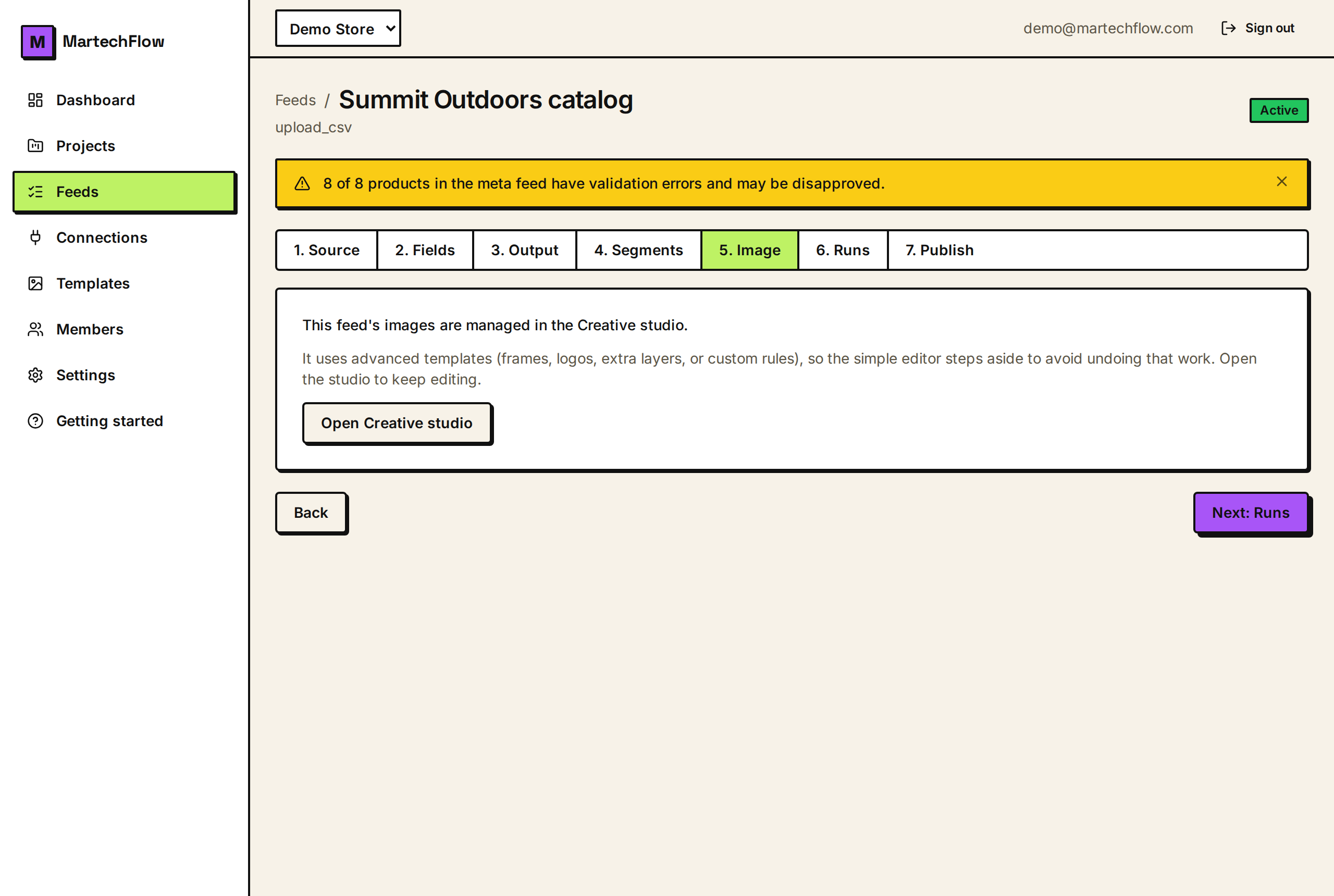
Quick badge owns a single template behind the scenes and is careful never to clobber advanced work. If you take that template into the Creative studio and add frames, logos, extra layers, or custom rules, the simple editor steps aside and points you to the studio instead of overwriting your changes.
If your feed already has advanced templates, the Quick badge tab tells you the feed is managed in the Creative studio and links you there. This keeps the simple tab from quietly undoing a complex setup.
- Use Quick badge for one straightforward discount sticker.
- Use the Creative studio for frames, logos, custom text, multiple layers, or set-targeted rules.
- When a feed has several active templates, the highest-priority matching template wins per product.