Map your fields (auto-map and manual)
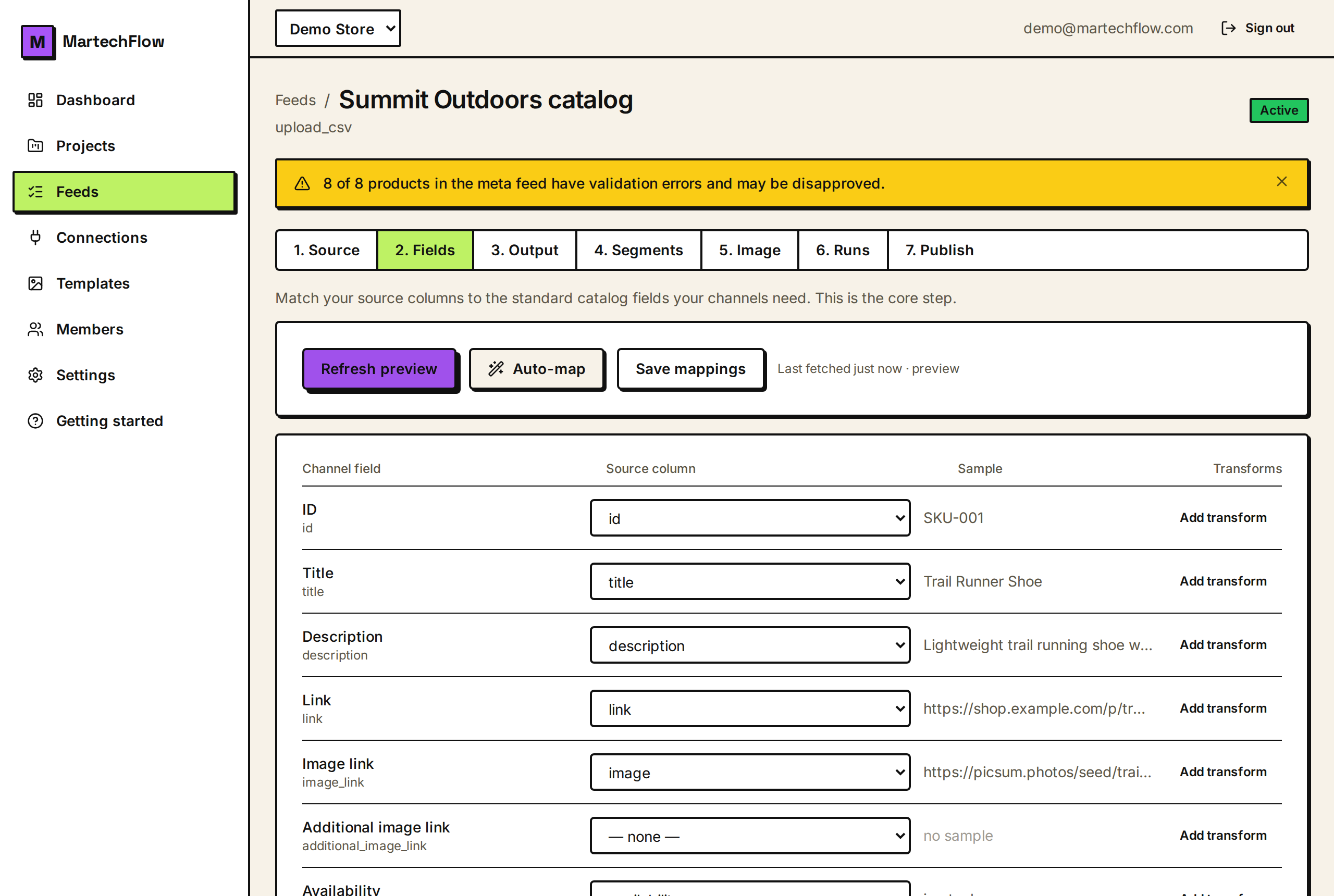
Match your source columns to the standard catalog fields your channels need. Use Auto-map to do it in one click, then fix anything by hand.
What mapping does
Your product file uses whatever column names your store happens to export, like "Name", "Regular price", or "Img". The ad channels (Google Shopping, Meta, Snapchat, TikTok) expect specific fields with specific meanings. Mapping is where you tell MartechFlow which of your source columns feeds each standard field.
This is the core step. Once your fields are mapped, you already have a valid feed. Everything else (the Output tab, image badges, segments) is optional polish on top of a good mapping.
The standard fields MartechFlow maps to are the ones channels care about: ID, Title, Description, Link, Image link, Additional image link, Availability, Price, Sale price, Currency, Brand, GTIN, MPN, Condition, Google product category, Product type, Item group id, Sale price effective date, and Identifier exists.
Load a preview of your source
Open your feed, go to the Fields tab (step 2), and click "Load preview". MartechFlow fetches the first rows of your source and reads its real column headers, so every dropdown shows your actual columns and a live sample value sits next to each field.
If you have visited this step before, the last fetched sample is remembered and shown with a "Last fetched" time, so the dropdowns and samples appear without re-fetching. Click "Refresh preview" any time you want fresh data.
- 1Open the feed and click the Fields tab.
- 2Click "Load preview" (or "Refresh preview" to re-fetch).
- 3Confirm your columns and sample values appear next to each channel field.
Auto-map in one click
Click "Auto-map" and MartechFlow matches your headers to the standard fields for you. It works by recognizing common header names. For example "Name" or "Product Name" maps to Title, "Regular price" or "MSRP" maps to Price, "Image URL" or "Photo" maps to Image link, and "SKU" or "Item ID" maps to ID.
Auto-map is careful about close calls. An exact name match wins over a loose partial match, and each source column is used only once, so a specific header like "Image URL" is claimed for Image link before a looser "url" can be pulled into Link by mistake.
Auto-map only fills in dropdowns. It never overwrites a choice you have already made, and you can change anything it picked.
Map and adjust by hand
For any field, open its dropdown and pick the source column it should come from, or choose "none" to leave it empty. The sample column shows the first row's value for the column you pick, so you can confirm you chose the right one before saving.
You do not have to map every field. Map at least the ones your channel requires (see the FAQ), and add the recommended ones to improve performance. A field left as "none" is simply blank in the output.
- 1Find the field you want to set, like Title or Price.
- 2Open its "Source column" dropdown and pick the matching column.
- 3Glance at the Sample to confirm the value looks right.
- 4Repeat for the other fields you need.
Save your mappings
Click "Save mappings" when you are happy. Only fields that have a source column (or a transform) are saved, so empty rows are ignored.
Saved mappings are what your runs and exports use from then on. You can come back and adjust them at any time, then re-run the feed to apply the changes.