Transform rules: rename, combine, format
Clean and reshape a field's value with simple, stackable transforms: trim, case, find and replace, default if empty, prepend, append, and UTM tags.
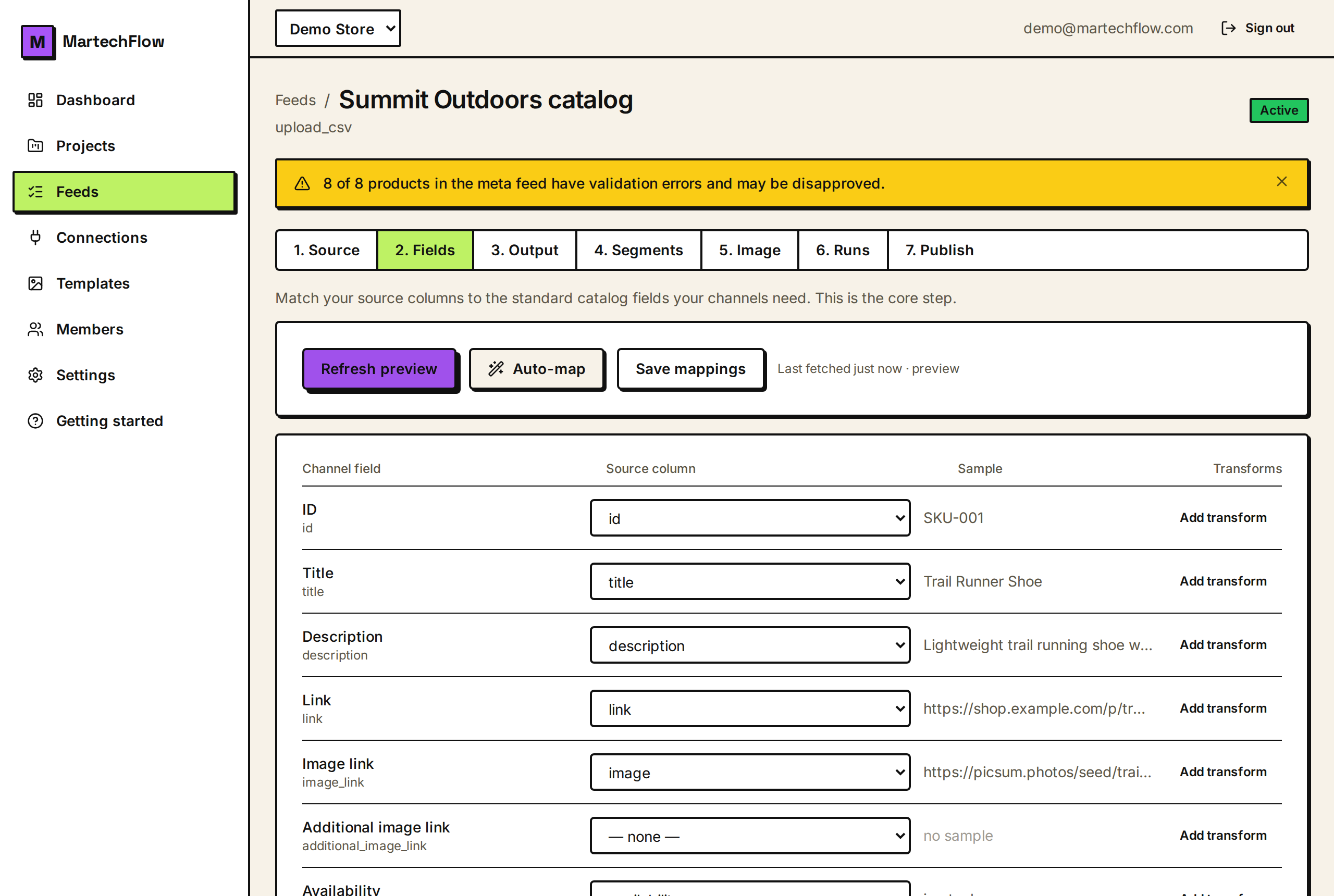
What a transform is
A transform is a small rule that changes a field's value on the way out. You stack transforms in order, and each one runs on the result of the one before it. So you can trim spaces first, then fix the casing, then add a prefix, in that order.
Transforms live next to each mapped field in the Fields tab. Click "Add transform" under a field to open its transform list, then add as many as you need. The label on the button shows how many are applied (for example "2 applied").
The transforms you can add in Fields
Each transform does one job. Stack them to build up exactly the value you want.
- Default if empty: if the value is blank, use a fallback you type. Example: a missing Brand becomes "Generic". A non-empty value is left untouched.
- Trim spaces: remove leading and trailing whitespace. Useful for columns that come with stray spaces.
- lowercase: turn the value all lower case. Example: "NEW" becomes "new".
- UPPERCASE: turn the value all upper case. Example: "new" becomes "NEW".
- Title Case: capitalize the first letter of each word and lowercase the rest. Example: "summer DRESS" becomes "Summer Dress".
- Prepend text: add text to the front. Example: prepend "https://shop.com" to a relative path.
- Append text: add text to the end. Example: append " - Free Shipping" to a title.
- Find and replace: swap one piece of text for another, everywhere it appears. Example: find "&" and replace with "and".
- Add UTM tags: append tracking parameters to a link. This is covered in its own article.
Example: clean up a messy title
Say your source titles come in as " summer DRESS " with extra spaces and shouty casing, and you want them to read "Shop: Summer Dress".
Add these transforms in order to the Title field, and the result builds up step by step.
- 1Add "Trim spaces" so it becomes "summer DRESS".
- 2Add "Title Case" so it becomes "Summer Dress".
- 3Add "Prepend text" with value "Shop: " so it becomes "Shop: Summer Dress".
Order matters
Because transforms run top to bottom, the same set in a different order can give a different result. Trim before you prepend, or you may copy the stray spaces into the middle of your value. Fix casing before you append fixed text you want to keep as-is.
If a transform does not seem to do anything, check the order and the live sample shown for the field. The sample reflects the saved mapping, so save and re-preview to see the latest result.
More advanced reshaping
The Fields tab covers the everyday cleanups above. For richer reshaping, MartechFlow also supports combining several columns into one value, formatting numbers to a fixed number of decimals, swapping coded values for friendly ones (a value map), and computing a discount percentage. Some of these are surfaced in the Output tab's "Build from pieces" and column tools.
To rename a column entirely (a different output header), use the Output tab to add a custom column or override a channel column. See Build your output feed (custom columns).