Build your output feed (custom columns)
Customize what each output column contains. Keep channel defaults, pull from a field, set static text, build from pieces, or look up from a file, with a live preview.
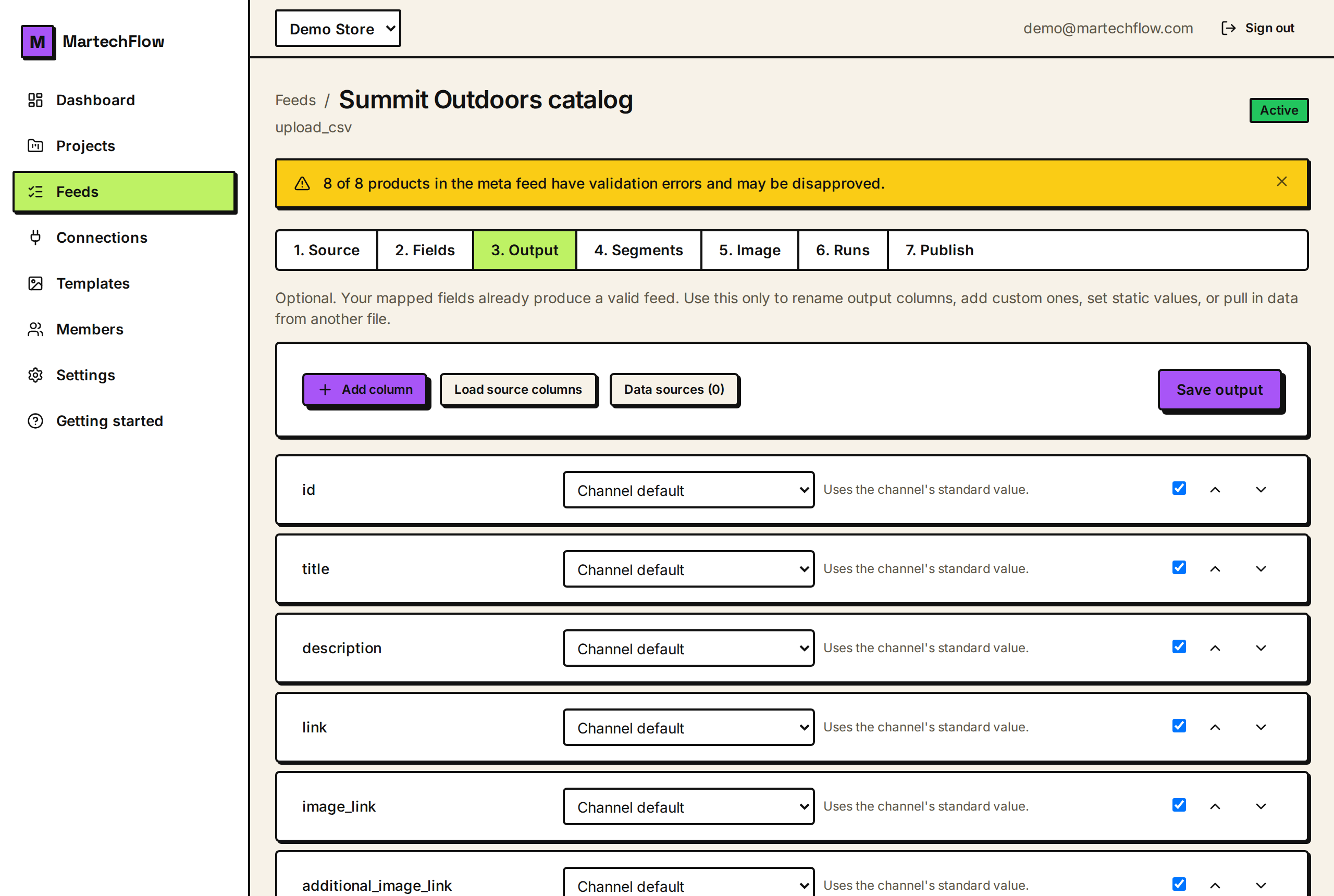
When you need the Output tab
The Output tab is optional. Your mapped fields already produce a valid feed, so you only need this step to customize the output: rename or add columns, set a fixed value, combine fields, or pull in data from another file.
Each output column is one rule. You choose how that column gets its value from a small set of modes, and a live preview shows the result on real products as you edit.
The five ways a column can get its value
For each column, pick a mode from the dropdown.
- Channel default: keep the channel's standard value and formatting. This is the safe default for the built-in columns, and it is where channel-specific formatting (price, availability wording, image choice) is applied for you.
- From a field: set the column to one of your mapped catalog fields, or to an un-mapped source column (after loading source columns).
- Static text: type one fixed value used for every product, like a brand name or a shipping label.
- Build from pieces: write a template that mixes text and {field} tokens, for example a custom landing URL. Covered in its own article.
- Lookup from another file: pull a value from a supplemental CSV, XML, or Google Sheet by matching on a field. Covered in its own article.
Add, rename, and reorder columns
Click "Add column" to create a custom column. New custom columns get a name like custom_label_0 that you can rename in place. Built-in channel columns keep their standard names but you can still change how they are filled by switching their mode.
Use the up and down arrows to reorder columns, the checkbox to enable or disable a column without deleting it, and the trash icon to remove a custom column. Each column name must be unique. If two share a name you will see a clear warning and saving is blocked until you fix it.
- 1Open the Output tab on your feed.
- 2Click "Add column" and rename it.
- 3Pick a mode and set its value.
- 4Reorder with the arrows and toggle the checkbox to enable or disable.
- 5Click "Save output".
Reference fields and source columns
In "From a field" and "Build from pieces", you reference values by name. Mapped catalog fields are always available. To reference a column from your source that you did not map, click "Load source columns" first, then it shows up in the field picker labeled "(source)".
In templates, reference any value by wrapping its name in curly braces, for example https://shop.com/p/{id}. A token resolves to your mapped field if the name matches a catalog field, otherwise to a source column of that name.
Preview and save
As you edit, a preview runs your rules on real product rows and shows the resulting value under each column, so you can confirm a column reads the way you expect before publishing.
Click "Save output" to apply. If your new rules reference source columns that were not being captured yet, MartechFlow runs a quick data refresh to pull them in, and your channel feeds update automatically once it finishes. A note tells you when this is happening. Note that Google and Microsoft may ignore unknown custom columns, so use custom columns mainly for channels that read them.