Lookups: enrich from a supplemental file
Pull extra data into your feed from a CSV, XML, or Google Sheet. Match each product on a field and return a column, like margins, categories, or custom labels.
What a lookup does
A lookup brings in data that is not in your main product source. You point MartechFlow at a second file, tell it which column each product matches on, and it returns a value from that file into an output column.
This is how you enrich a feed without editing your store: vendor margins from a spreadsheet, friendlier category names from a mapping sheet, supplier codes, or custom labels you maintain separately.
Add a data source
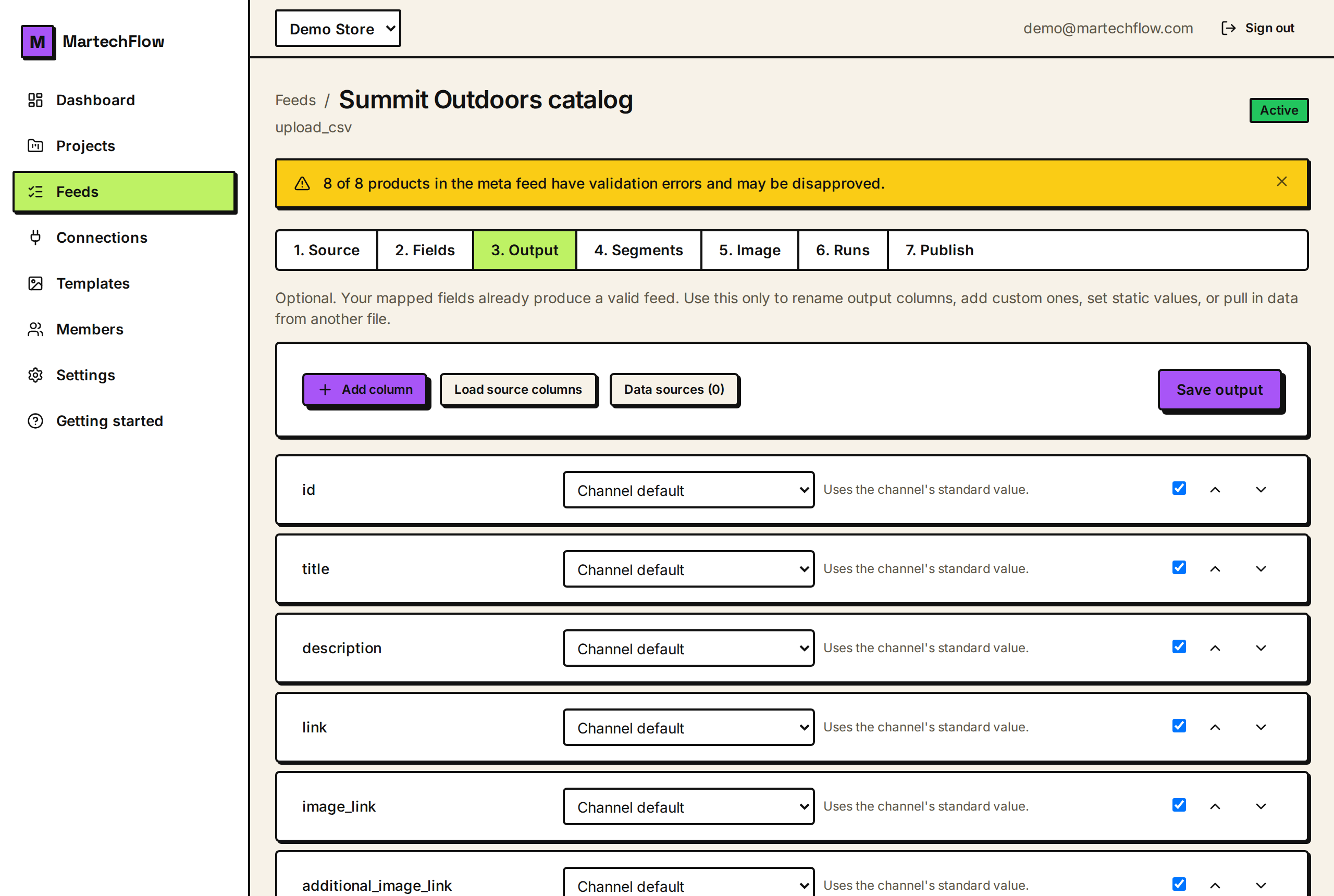
On the Output tab, open "Data sources" and click "Add source". A short wizard walks you through it. You can use a published Google Sheet CSV link, a CSV URL, or an XML URL.
Name the source and paste the URL, then MartechFlow previews the real headers so you pick the key column from a dropdown rather than typing it. The key column is the value each product will match on. Finally, choose what to do if the file has duplicate keys: keep the first match or the last.
- 1On the Output tab, click "Data sources", then "Add source".
- 2Name it and choose the type (Google Sheet CSV, CSV URL, or XML URL).
- 3Paste the URL and click "Preview".
- 4Pick the key column (what products match on) and a duplicate policy.
- 5Click "Add source".
Use the lookup in a column
Add or pick an output column and set its mode to "Lookup from another file". You then choose three things: which data source to use, which product field to match on, and which column from the file to return.
For example, match on id, look it up in your "Vendor margins" sheet, and return the margin column. Each product's id is found in the sheet and its margin is written into that column.
- 1Set the column's mode to "Lookup from another file".
- 2Pick the data source.
- 3Pick the product field to match on (for example id or gtin).
- 4Pick the column from the file to return.
- 5Save output.
Matching, defaults, and refresh
The match is one-to-one by key value: MartechFlow joins your products to the file on the field you chose. If the same source on a different match field is used elsewhere, that is a separate, independent join, so the two never get confused.
If a product has no match in the file, or the matched cell is empty, the column comes out blank unless you provide a default. Keep your file's key column clean (unique, same format as your product field) for reliable matches.
Supplemental sources have their own contents that you refresh with the refresh button on the data source. The panel shows each source's status, row count, and any last error so you can tell it loaded correctly.