Connect a product feed URL (XML or CSV)
Point MartechFlow at a live CSV or XML feed URL, set a refresh schedule, and let it pull your catalog automatically on a stable, repeatable run.
What a feed URL source does
A feed URL source tells MartechFlow to fetch your product data straight from a link you already have, like a CSV or XML file your store publishes at a fixed web address. Every time the feed runs, MartechFlow opens that URL, streams the file, reads your columns, and updates your products. Nothing is uploaded by hand.
This is the simplest way to keep a feed fresh. You set the URL once, pick how often it should refresh, and the catalog stays current on its own. It works for everything from a hundred rows to millions, because the file is read as a stream and never loaded whole into memory.
CSV vs XML: which to pick
When you create the feed you choose a source type that matches your file. The two URL types are CSV URL and XML URL. Pick the one that matches what the link actually serves.
- CSV URL: a comma-separated file where the first row is your column headers. MartechFlow trims spaces, handles a leading byte-order mark, and tolerates rows with a few extra or missing columns. If your file uses a different separator (a semicolon or a tab), that can be set in the feed's source settings.
- XML URL: a feed built from a repeating product element. By default MartechFlow reads one product per repeating 'item' element and collects each child tag as a field. Google Shopping style tags work out of the box: a tag like 'g:price' is read simply as 'price', and repeated tags such as additional image links are combined automatically.
- Not sure which you have? Open the URL in a browser. If you see rows of plain text separated by commas, it is CSV. If you see nested tags in angle brackets, it is XML.
Connect the URL step by step
You can add a URL feed from the Feeds page in a few seconds.
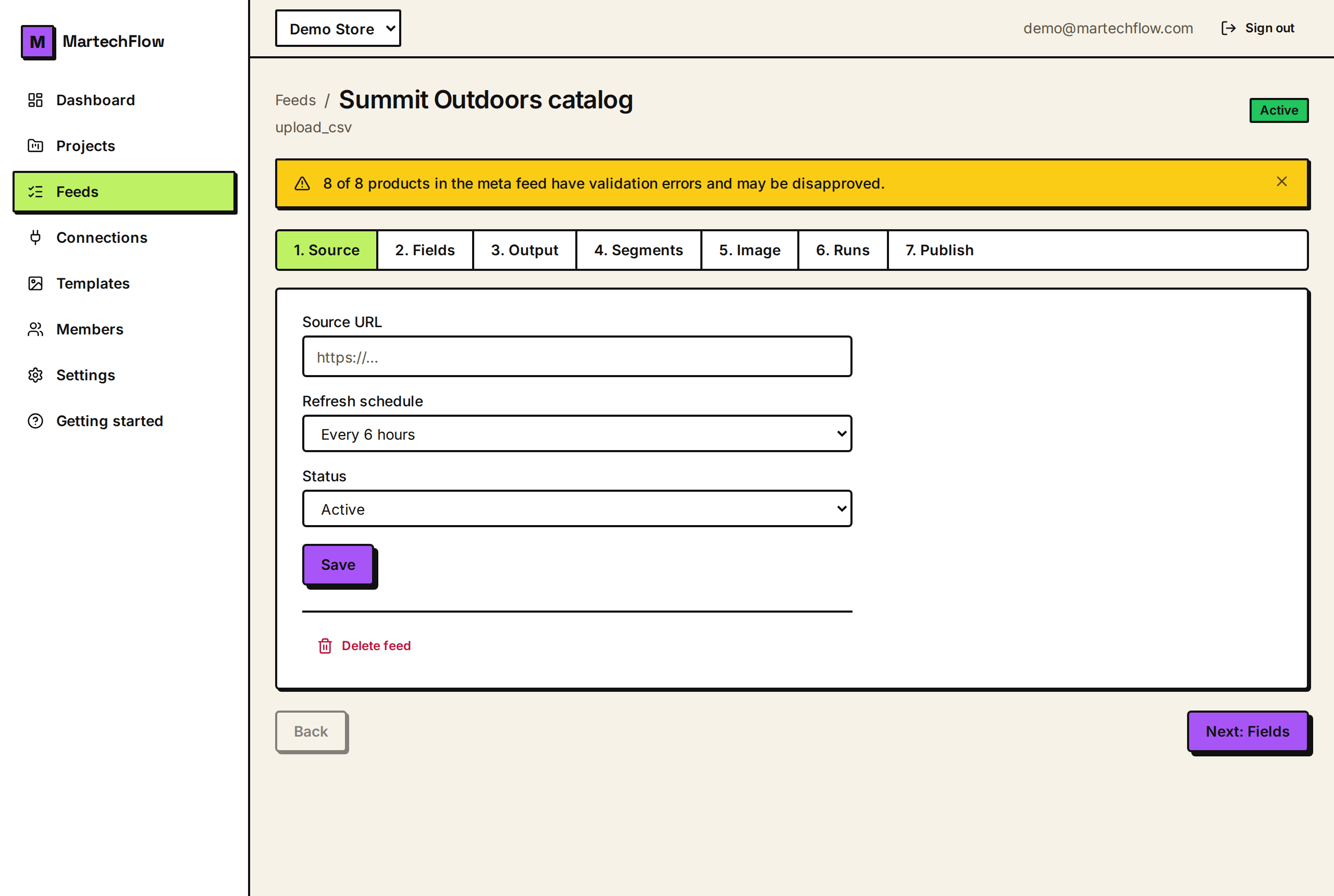
- 1Go to Feeds and click Add feed (or use Guided setup for a walkthrough).
- 2Pick the project the feed belongs to and give the feed a clear name, like Summer catalog.
- 3Under Source, choose CSV URL or XML URL to match your file.
- 4Paste the full feed URL into the URL field. It must start with http:// or https://.
- 5Click Add feed. Open the feed, load a preview to confirm your columns read correctly, then map your fields and save.
Set a refresh schedule
On the feed's Source tab you can choose how often MartechFlow re-fetches the URL, for example hourly or daily, or leave it manual so it only runs when you trigger it. Pick the cadence that matches how often your prices and stock change. A store that re-prices through the day wants a more frequent refresh; a stable catalog can refresh daily.
Set the feed's status to Active once you are happy with the mapping. Active feeds run on their schedule; a Draft or Paused feed will not run automatically.
Security and limits to know about
Because you supply the URL, MartechFlow protects its servers before every fetch. It only allows http and https links on the standard ports, and it refuses to connect to private, internal, or cloud-metadata network addresses, even if a link or a redirect tries to point there. This is a safety feature, so a URL that resolves to a private or internal host will be rejected.
Each fetch also has guardrails: a connection timeout, a cap on how many redirects it will follow (and every redirect target is re-checked against the same rules), and a maximum download size. Feeds are streamed, so very large files are fine, but a stuck or runaway response is cut off rather than left to run forever.
MartechFlow sends a normal browser-style request so most stores serve the feed without trouble. If a store's bot protection blocks the fetch with a 403, MartechFlow automatically retries through a fallback route, and if that is still blocked it shows you exactly how to fix it. See the related article on blocked feeds.