Invite teammates
Bring teammates into your organization with a two-step invite: set their email and org role, then grant project access. We email a one-time accept link (and give you a copyable one too), and you can manage roles or revoke invites any time.
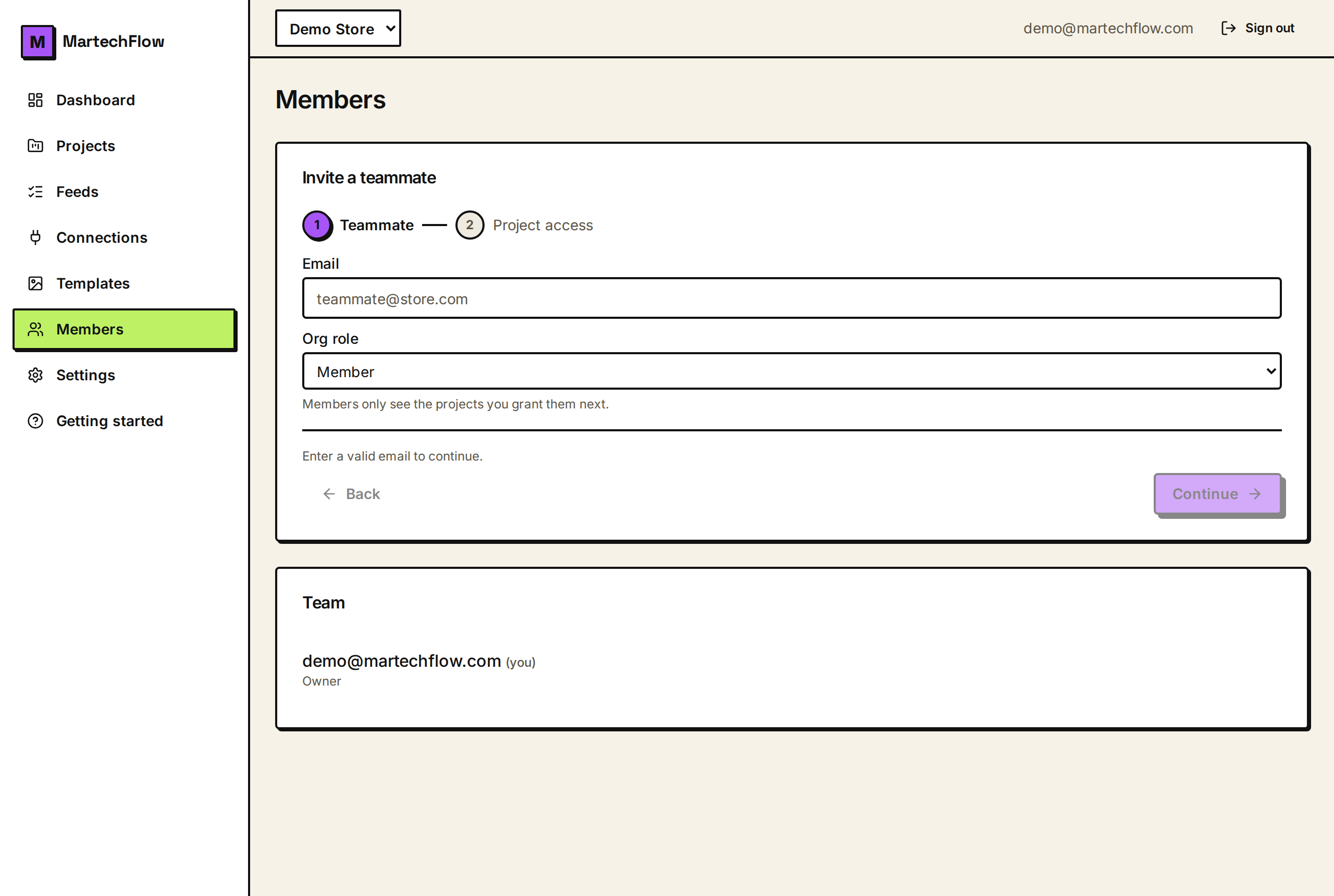
Who can invite
Only organization owners and admins can invite people or manage members. If you have the Members page and an "Invite a teammate" card, you have the right role.
Open Members from the left sidebar, or use the "Manage team" button in Settings, which links to the same place.
Send an invite
Inviting is a quick two-step wizard. Step one captures who they are and their org-wide role. Step two grants the projects they can work in. The second step matters because a plain member joins with no access at all until you grant at least one project, so the wizard requires that before it lets you send.
- 1Go to Members and open the "Invite a teammate" card.
- 2Step 1: enter the teammate's email and pick an Org role, Admin or Member.
- 3Select Continue.
- 4Step 2: if they're a Member, tick at least one project and set its level (Read, Edit, or Project admin). If they're an Admin, this step is optional since admins see every project.
- 5Select "Send invite."
- Admin invite: the teammate will see and manage every project, so granting specific projects is optional.
- Member invite: you must grant at least one project, otherwise they would log in and see nothing.
How they accept
After you send, we email the invite to that address if email is configured, and we always show you a one-time accept link you can copy and share directly (handy when email is not set up or for speed).
The invitee opens the link, which shows which organization they are joining and the exact email it is for. They must be signed in as that same email to accept; if they do not have an account yet, they create one first using that email, then reopen the link. Accepting adds their membership plus any project grants you attached, and drops them into the new organization.
Invite links are single-use and expire after 14 days.
Manage members and pending invites
On the Members page, the Team list shows everyone in the organization with their current role. As an owner or admin you can change a member's org role from the dropdown or remove them.
A few rules keep things safe: you cannot change your own role from this list, and anything involving an owner (changing an owner, or promoting someone to owner) is restricted to owners only. The last remaining owner cannot be removed or demoted.
Pending invites appear in their own list. You can revoke any invite that has not been accepted yet, which immediately invalidates its link.
- 1To change a role: pick a new value (Member, Admin, or Owner) from the member's dropdown.
- 2To remove someone: select the remove (trash) icon next to them.
- 3To cancel an unaccepted invite: select "Revoke" next to it in Pending invites.